
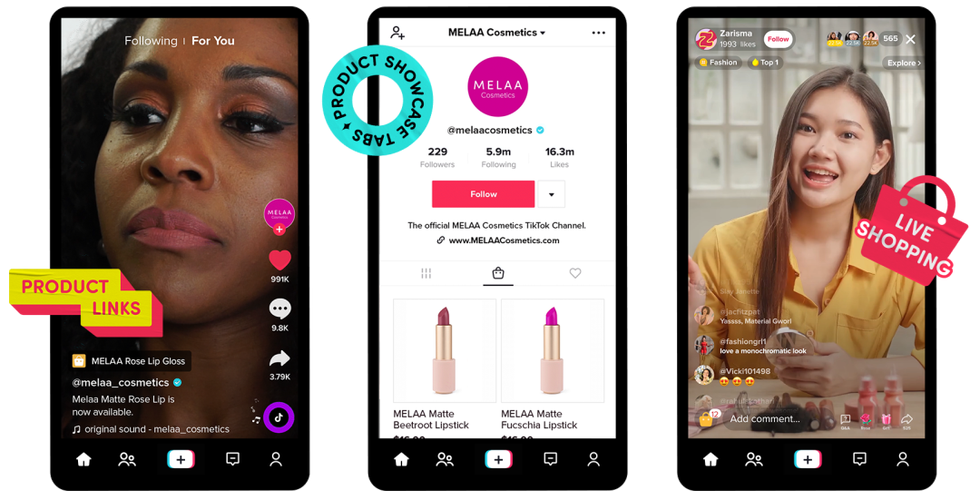
Desktop vs Mobile: When Should Sellers Switch to a Computer?
Managing a TikTok Shop solely from a phone may seem sufficient at first, but as order volume grows, screen limitations become a real operational bottleneck. Accessing the TikTok Shop Seller Center desktop is not just a matter of preferring a larger screen—it is a technical necessity to maintain data accuracy and processing speed as workload increases.
As a direct answer: switch to the desktop version when you need to bulk upload products, process large-scale shipments, or analyze financial reports that require a multi-screen view. The mobile app remains useful for monitoring instant notifications and replying to customer chats on the go, but it is not designed for complex administrative workloads.
Key Functional Differences Between the Mobile App and Web Version
The mobile app interface focuses on concise and responsive tasks—replying to chats, monitoring incoming orders, and viewing notifications. However, when you need to display a product variant matrix or detailed logistics data, the phone screen quickly becomes an obstacle. Conversely, the web version provides adequate visual space for bulk data entry. Via a computer, you can download a spreadsheet template, fill in hundreds of variants offline at once, and then upload it back in a single process without the typos that often occur when typing on a touchscreen.
A common operational mistake is relying on a phone to set up complex promotions or batch-edit prices. Screen limitations often hide discount details or time constraints, leading to detrimental promo input errors. For tasks demanding high precision, accessing the Seller Center via computer is the risk threshold that must be adopted to ensure daily operations run without technical errors.
Feature Navigation Map for Daily Sales Operations
Understanding the dashboard layout is key to keeping daily operations unhindered. In the TikTok Shop Seller Center desktop, features are not just a duplication of the mobile app—they are designed to handle higher workloads and complex administrative tasks. Here are the key feature criteria sellers need to master:
Catalog Management and Bulk Product Upload
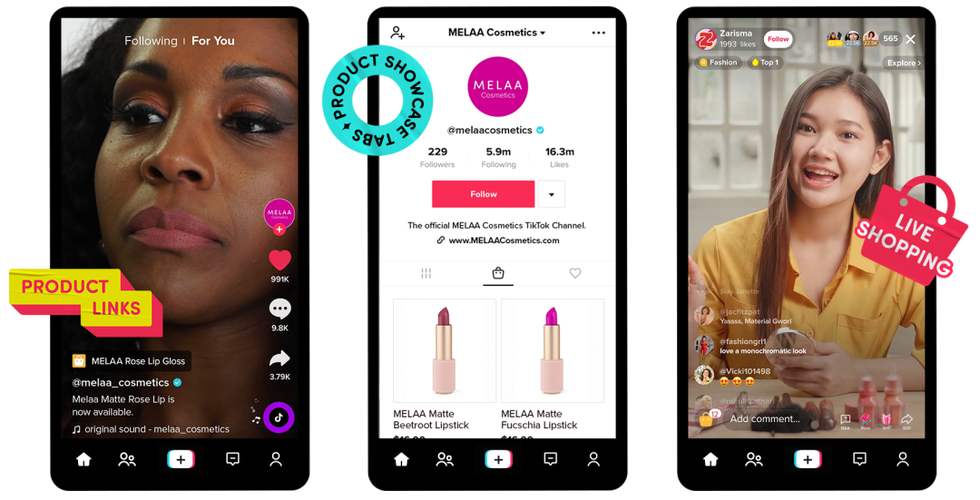
Relying on a phone to input hundreds of product variants is time-consuming and prone to input errors. Through the desktop version, sellers can utilize the bulk upload feature using a spreadsheet template. You download the file format, fill in product details, SKUs, and variants offline, then upload it back in a single process. This method reduces the risk of data duplication and maintains store catalog consistency.
Order Processing and Logistics Integration
When orders surge, a computer screen provides adequate visual space to process shipments in batches. Sellers can check multiple orders at once, print shipping labels in a single file, and schedule courier pick-ups without switching pages. One practical limitation often missed by new sellers: ensure pop-ups are allowed for the Seller Center domain in browser settings, so the download and shipping label printing process is not automatically blocked by the system.
Best Practices and Risk Limitations in Seller Center Desktop
Switching to the desktop version is not just about the comfort of a wide screen, but about avoiding operational errors when managing a high-volume store. When orders come in simultaneously, real-time stock synchronization becomes critical. If sellers still rely on manual stock updates via the mobile app, update delays can trigger overselling—resulting in order cancellations and store performance penalties.
Managing Stock and Promotions Efficiently
In the desktop version, the Seller Center dashboard allows stock updates for multiple SKUs at once via the bulk upload template. The recommended practice is to schedule stock updates at fixed intervals—for example, every morning and evening—to ensure data remains accurate without having to monitor the screen all day. Note that synchronization between the Seller Center and third-party logistics systems sometimes experiences technical delays. Sellers using external API integrations should verify the synchronization status before launching major promotional campaigns.
Another often overlooked risk is promo input errors. When creating discount or voucher campaigns on desktop, minimum purchase settings or promo quota limits are easily missed due to the number of fields that must be filled. A single configuration error—such as selecting the wrong date range or forgetting to activate the usage limit per buyer—can cause significant margin loss. Before publishing a promo, review the campaign summary again and test it on a single product first.
FAQ About Desktop Seller Center Access

When should I switch from mobile to desktop?
The decision depends on the workload. If you are only replying to one or two customer messages, the mobile app is sufficient. However, for bulk catalog uploads, batch order processing, or in-depth financial report reviews, the TikTok Shop Seller Center desktop is the right choice. The main consideration is navigation efficiency and the ability to process large-scale data without being limited by a small screen.
Which browsers are compatible with the desktop Seller Center?
The desktop Seller Center runs optimally on modern browsers like Google Chrome or the latest version of Microsoft Edge. Using an outdated browser often causes dropdown menus to malfunction or file upload processes to stall midway.
Are there login session limits on the desktop version?
Yes. For security reasons, the system will automatically log out if there is no activity for a certain period. Make sure to save your work periodically so that the data entry process is not delayed due to session expiration.
Is the live streaming feature available on the desktop version?
The live streaming feature and real-time comment management remain more optimal on mobile devices or tablets. Desktop excels at backend management—catalogs, orders, stock, and promotions—not for direct interaction in front of the camera.
Summary: When to Use Desktop vs Mobile
As a final guide, use the desktop version for: bulk product uploads, batch order processing, multi-SKU stock updates, complex promotion configurations, and financial report analysis. Use the mobile app for: monitoring instant notifications, replying to customer chats, and live streaming. This separation of roles ensures each task is performed on the most suitable platform, minimizing the risk of operational errors, and keeping store efficiency under control as sales volume grows.