

You have uploaded the video, waited for it to go live, and checked the result. The video plays normally, but the cart icon or product link is not there. This situation is often experienced by affiliates and immediately suspected as a platform glitch. Before concluding that, there is a sequence of self-checks you can do first.
Why Product Links Can Disappear After a Video Goes Live
There is an important difference between a missing link and a product that is not connected. A missing link is usually related to the upload or editing process. Meanwhile, a product that is not connected is more often caused by an account status that is not fully active or a product that is no longer available in the catalog. Both produce similar symptoms in the eyes of viewers, but the ways to fix them are different.
Many affiliates immediately assume there is a system error when a video has gone live without a link. In fact, the most common causes are actually simple things: adding a product after the video is published, re-editing the video from another device, or completing account verification requested by the platform. Checking yourself first will save time and avoid unnecessary reports.
Diagnosis Order: Account, Upload Process, Then Product Link
This order is important so you do not delete the video or report to support before finding the root of the problem. Start from the most basic, which is account status, then move up to the upload process, and finally validate the product link.
1. Check Account Status and Affiliate Permissions
The first step is to make sure your account is in a condition that allows you to link products. Open the affiliate profile menu and check whether the status is active, pending, or requires additional verification. If there is a request for complete data, finish it first before re-uploading. Keep in mind, platform terms can change, so always match them with what you see directly in the app. Do not rely on assumptions from old uploads.

2. Recheck the Upload Process and Video Settings
Common mistakes happen when adding products to a video. Make sure you press the add product button before publication, not after. Videos that are re-edited or uploaded from a different device often lose the link because the initial settings were not saved. Also distinguish between draft videos and published videos: drafts may not include a link yet, while published videos should already be connected.
If the link still does not appear, continue to product validation and affiliate cart before concluding there is a system disruption. Do not re-upload the video repeatedly just because the link is not visible yet; this can waste time and mess up your upload history.
3. Validate the Product Link and Affiliate Cart
The last step in self-diagnosis is to make sure the product you selected is still available and not restricted. Open the product catalog and check its availability status. Then, view the video preview from the viewer's side, not only from your own account. Sometimes the link appears on your device but not on someone else's device, and vice versa.
If the link still does not appear after all these steps, you already have enough evidence that the problem may not just be a settings mistake. At this point, self-checking is enough; continuing to experiment can waste time and trigger unnecessary repeated uploads.
When Should You Contact Support
There are signs that indicate this problem is already beyond your own settings control. First, the link still does not appear even though you have repeated all the steps above. Second, an unusual error message appears. Third, only one specific video has the problem while other videos on the same account are normal. If any of these signs appear, it is time to prepare a report to platform support.
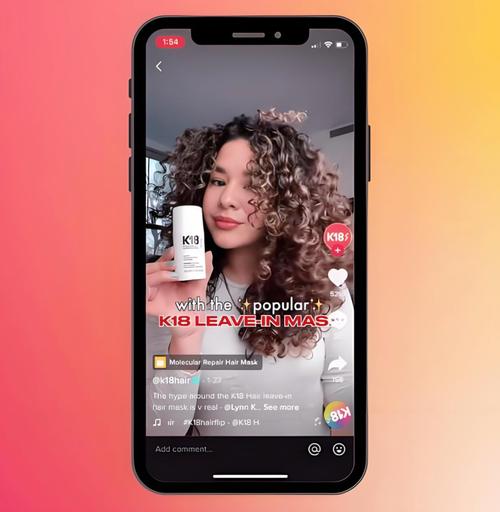
Before reporting, prepare information that helps the support team assess the problem. Note the date and time of the incident, take a screenshot of the video view from the viewer's side, and prepare details of the product you linked. Also write down the steps you have tried, from checking account status, upload settings, to validating the affiliate cart. This information speeds up the handling process and avoids repeated questions.
Remember, platform policies and displays can change, so always re-verify directly in the app before concluding. Do not assume this problem automatically affects commissions; commissions only apply if a transaction occurs through the correct link.
Should the Video Be Deleted and Re-uploaded?
Not necessarily. Deleting and re-uploading is the last option, not the first step. Consider the video's performance: if it is still gathering viewers or comments, deleting it could potentially lose the momentum that has already built up. Before making a decision, try fixing the product link through the video settings if that menu is available. If that effort does not work, re-uploading can be the last option with the note that you are ready to lose the old video's interaction history.
Does This Problem Affect Commissions?
A link that does not appear means there is no purchase path from that video. Commissions generally only apply if a transaction occurs through the correct link, so this problem can affect potential commissions. However, the size of the impact depends on whether there are still viewers who find the product through other paths. Do not assume commissions are completely lost before checking the transaction report in the app, because the final status still follows the platform's official records.
Practical Steps You Can Try Now
Start by checking account status, then check the upload process, and validate the product link. This order helps you find the cause quickly without having to delete the video or report to support too early. If all steps have been tried and the link still does not appear, prepare the necessary information and contact platform support. That way, you do not waste time and still maintain the performance of the video that has already gone live.