
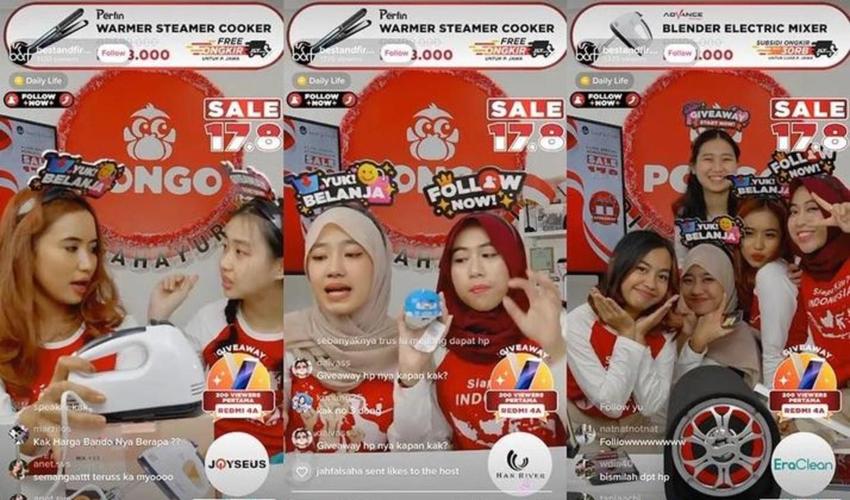
Managing a store from the palm of your hand is now crucial for active, on-the-go sellers. However, many still treat the app merely as a chat tool or order notification receiver. This perception directly impacts operations: delayed orders, slow responses, and dropping store ratings because sellers only open the app when a notification comes in, then wait to get back to a computer to process orders manually.
In reality, the TikTok Shop Seller Center app is designed as a complete operational control center. From a mobile device, sellers can confirm orders, download and print shipping labels, monitor daily sales performance, and even manage basic product catalogs. Active, on-the-go sellers do not need to wait to return to their desks to complete these critical tasks.
Why Managing Your Store via the Mobile App is a Primary Need
The most common mistake is sellers only utilizing the app to reply to buyer chats, while core functions like order management and analytics monitoring are left idle until PC access is available. This pattern creates operational bottlenecks, especially when order volume spikes on weekends or during live streaming.
Mobile sellers need full control from their hands because the order response window on TikTok Shop is relatively tight. If an order comes in and is not processed within the specified timeframe, the system can flag the store with a lateness indicator that impacts product visibility. The Seller Center app provides the ability to respond to these situations in real-time, without having to be in front of a laptop.
Quick Navigation of Core Features for Daily Operations
Knowing where each feature is located in the TikTok Shop Seller Center app differentiates a merely reactive seller from one who truly controls their store. This app unites order, analytics, and shipping functions in one interface, but the navigation is not entirely intuitive if you are opening it for the first time. The following section maps out the most frequently used feature categories daily and how to access them quickly.
Real-Time Order Management and Shipping
The Orders tab on the app's homepage is the gateway for all order activities. Once an order comes in, you will see a red number badge on the icon. The operational steps are sequential: open the Orders tab, select the order with the Unfulfilled status, confirm the buyer's address details, then select the Arrange Shipment option to generate the shipping label.
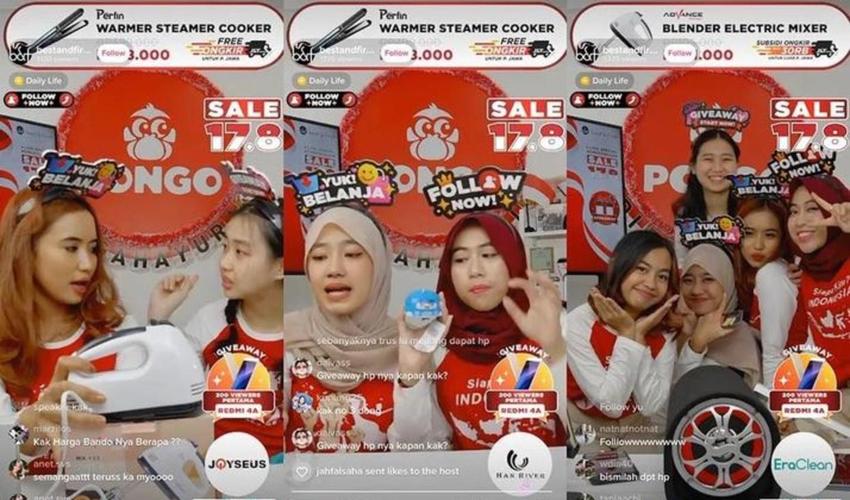
The label can be downloaded as a PDF file directly from your phone and printed via a Bluetooth-connected or cloud print printer. What is often missed is the shipping deadline: TikTok Shop provides a relatively tight fulfillment window, and delays in processing orders directly affect the store's rating. If you rely on the app as your primary tool, make it a habit to check the Orders tab at least every two hours during operational hours.
Performance Monitoring and Sales Analytics
The Analytics menu provides a daily dashboard displaying key metrics such as order count, revenue, and video views. From your phone, you can see daily and weekly trends without opening a browser. The most worthwhile metrics to monitor every morning are the order conversion rate and video views of your featured products, as both indicate whether your content is still attracting attention or has declined.
The app displays simple graphs that are sufficient for quick evaluation. However, for in-depth analysis with audience segmentation, the desktop version remains more comprehensive and is recommended for long-term strategic planning.
Mobile App Limitations and When to Switch to a PC
Relying on the mobile app for daily operations is indeed efficient, especially when you have high mobility. However, there are operational limits to understand: a phone screen and touch interface are not ideal for complex catalog management. When your store starts having many product variants, editing prices or descriptions one by one through the app becomes impractical and prone to input errors.
The main limitation lies in the bulk product edit feature. The mobile app is designed for quick responsiveness, not for large-scale data manipulation. If you need to upload new products with many variant combinations—such as different sizes, colors, and stock—the process will be much faster and more accurate on the desktop version. Additionally, advanced logistics settings and complex promotional campaign management often require a wide screen view to minimize the risk of configuration errors.
The practical solution is to divide your workflow. Use the mobile app to monitor order notifications, reply to customer chats, and approve shipments. However, for heavy tasks like uploading new products, bulk price updates, or initial catalog setup, switch to a PC. You can refer to the guide on managing your store on a PC for detailed steps on handling operations that require high precision.
Tips for Optimizing Order Notifications So You Don't Miss Any
Delaying responses to incoming orders is not just an operational issue, but directly impacts your Service Level Agreement (SLA) metrics and store health. If real-time order notifications are not functioning optimally, the risk of orders being delayed or missing the shipping deadline increases. This is where utilizing the app becomes crucial, but the app is only useful if the alerts actually appear on your phone screen.

Many sellers complain about not receiving notifications when the problem is not with the app, but with the phone's operating system configuration. To ensure push notifications work effectively, you must disable the battery saver feature, which often cuts off background app connections. Additionally, make sure notification permissions are fully enabled in the Android or iOS OS settings, not just within the app's menu. A common mistake sellers make is relying on in-app settings without checking OS restrictions that actually block incoming notifications.
As a quick response step, set a specific ringtone or vibration pattern for the Seller Center app. This helps distinguish incoming order alerts from regular social media chats, allowing you to process orders immediately and keep your store rating optimal.
Frequently Asked Questions About Seller Center App Operations
Are all desktop features available on the mobile app?
No. Core features like order processing, label printing, and basic analytics are available, but bulk product editing features and advanced logistics settings require the desktop version for better accuracy.
How to ensure incoming order notifications always appear?
Besides enabling notifications within the app, make sure notification permissions are enabled in your phone's operating system settings. Disable battery saver mode, which can cut off background app connections.
How often should mobile sellers check the Orders tab?
To maintain store ratings and meet shipping SLAs, it is recommended to check the Orders tab at least every two hours during active store operational hours.
By understanding the feature map and limitations of this app, sellers can maximize efficiency while in the field without sacrificing store health. Use mobile for responsiveness and PC for data precision.