

The products are arranged, the script is memorized, and the broadcast button is ready to be pressed. But once the live starts, the screen shows a dark image, the microphone does not pick up sound, or the connection stutters. Not long after, the broadcast stops and viewers who just joined leave immediately. This is a common experience for sellers trying how to live TikTok Shop on PC for the first time. The problem is usually not the account, but the readiness of the devices and a flow that has not been tested.
Why Broadcasts from a Computer More Often Stop in the First Minutes
On a phone, the camera and microphone are already integrated, so checking takes only a moment. On a PC, video and audio sources can come from different devices: an external camera, a headset microphone, or the computer's built-in device. The operating system also has its own permission settings that must be enabled. If one source is not recognized by the browser, the preview may look normal, but the broadcast runs without image or without sound.
This difference is what makes live from PC require separate checks. Sellers who have never tested their devices often assume everything is fine because the camera icon appears on screen. In fact, a detected device does not necessarily produce image and sound that are good enough for viewers.
When a PC Is Actually More Troublesome Than Beneficial
A PC is worth choosing if you need a large screen to monitor comments, display a catalog, or manage several devices at once. However, for a first broadcast with one product and simple interaction, a phone is often more practical because the device is already proven. The biggest risk of PC is longer setup time and more points of failure, especially if the network is not stable or the device has never been tried.
The practical decision: use a PC if you already have a clear workflow and time to do a test run. If not, start from a phone for the first broadcast, then move to PC after you understand the rhythm of the session.
Device and Account Checklist Before Broadcasting
Many new sellers only realize their PC is not ready after the broadcast has been running for a few minutes. Therefore, check each point below one by one, not just by relying on memory.
Camera, Microphone, and Lighting

Make sure the camera and microphone are detected in the operating system, then do a 30-second test recording. Play it back to assess the image and sound. Check whether the camera being read is the camera you intended. For audio, avoid a microphone that picks up fan noise or room echo. If the sound is too low, adjust the speaking distance without having to buy new equipment. The risk limit is clear: if this test is skipped, viewers will leave before you have a chance to explain the product.
Connection, Software, and Access Permissions
Test connection stability, not just speed. A fast but intermittent network is riskier than a stable moderate speed. Check system and browser updates, then make sure camera and microphone permissions are enabled. Do not ignore these permissions because they usually only appear as a warning when the broadcast starts, not before.
Account and Access from a Computer
Make sure your seller account can be accessed via computer. Account access is the main prerequisite. If the display or options you see differ from general guides, do not force it. Note the differences and verify through official sources before scheduling a broadcast. Note that access for live broadcasting from a computer may differ between accounts, depending on account type, region, and applicable settings. This information can change, so always check the latest updates.
Live Session Flow: from Opening to Closing
Device preparation is done, but the session can still get messy if the flow is not maintained. This section discusses the operational sequence from the first minute to closing the broadcast.
Opening Minutes: Making Sure the Broadcast Is Seen and Heard
Before pressing the broadcast button, use the preview to make sure the camera captures the product area correctly and the microphone is read. Test the audio by speaking briefly, then greet early viewers. If there is echo or the image is too dark, fix it now, not when viewers are already crowding in. The opening minutes are the time to build trust, not to experiment with settings.
While Live: Staying Focused and Anticipating Disruptions
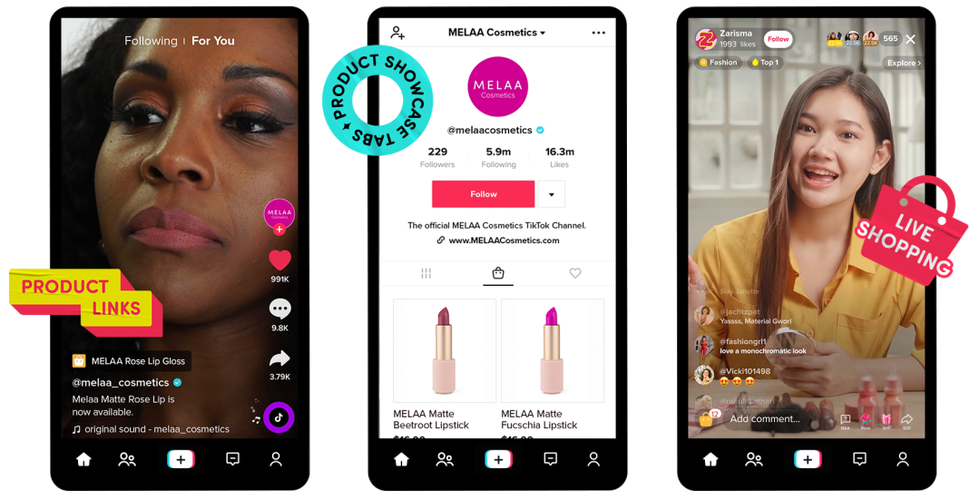
Keep the session rhythm: deliver product information, answer comments, then return to the selling points. If the connection drops, prepare a backup plan such as reducing video quality or conveying important information verbally. Respond to comments without losing the flow, and avoid excessive claims that could damage credibility. The risk limit is clear: minor technical disruptions can still be handled, but if the broadcast is completely cut off, focus on quick recovery and communication to viewers.
Closing the Session and Recording an Evaluation
End the session with a product summary and a clear call to action. After the live, note any technical issues that arose, whether audio, lighting, or interaction. These notes become the basis for improvement before the next session, so your PC preparation becomes more mature.
Frequently Asked Questions
Can all accounts go live on TikTok Shop from a PC?
Not always. Access to live broadcasting from a computer may differ between accounts, depending on account type, region, and applicable settings. Before scheduling a session, make sure your seller account can be accessed via the web and has the necessary permissions. If in doubt, verify through official sources or contact TikTok Shop support. Important note: information about this access can change, so always check the latest updates.
What is the biggest risk if PC preparation is skipped?
The biggest risk is not only a dropped session, but also losing viewers in the first minutes. When audio is not read, the image is dark, or the connection stutters, viewers will immediately leave the broadcast and are hard to bring back. A live that stops suddenly can also damage the trust of potential buyers. To reduce this risk, do a short test before the actual live. Test the preview, audio, and basic interaction. If problems are found, fix them first before the official broadcast.
Summary of Readiness Criteria
A TikTok Shop live from a PC can run smoothly if these three things are met: video and audio devices are tested with a short recording, the connection is stable and access permissions are active, and the session flow from opening to closing is understood. If one is not ready, postpone the broadcast or use a phone first. Technical readiness is the main determinant of a smooth session, not a supplement.
Before scheduling your next broadcast, take the time to check your account access and note the issues from the last session. This small step will save time and maintain viewer trust.