
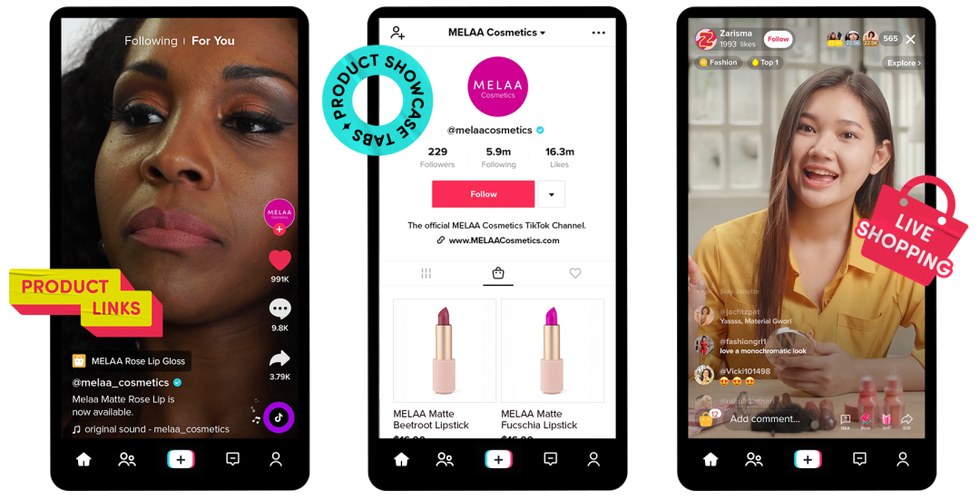
The question that comes up most often before you start selling is: what needs to be prepared? Many business owners immediately open the add product menu with a photo on their phone and a rough product name. The first upload succeeds, but the product looks half-baked: wrong category, empty description, incomplete variations, and inconsistent photos. The problem rarely shows up during the upload. It surfaces when potential buyers start asking questions or when you have to edit repeatedly.
So the measure of success isn't just whether a product makes it into the catalog. A more useful measure is whether the product data explains itself well enough without you having to type extra answers to buyers one by one. In practice, complete information determines readiness to go live more than upload speed does. This article covers how to add your own product to TikTok Shop with an emphasis on data-entry decisions, not on menu layouts that can change.
Two Decisions Worth Making Before Entering the Product Menu
Before touching the form, decide who your main buyer is and what problem your product solves. This decision affects how you write the name, choose the category, and structure the description. Without clear direction, product names tend to be too generic and categories are chosen carelessly, so the product sinks among similar items.
The second decision is to prepare raw materials in one folder: photos from several angles, a list of variants, sizes, materials, usage instructions, and the shipping terms that apply in your store. Preparing materials first feels slow at the start, but it saves a lot of editing time later. If you don't yet have a seller account that's ready, complete the registration steps first before moving on to product management.
One limitation to keep in mind: menu layouts and input fields can differ between accounts and can change. Don't rely on an old tutorial or screenshots circulating online. Treat the guidance inside the platform as your main reference, and use this article as a thinking framework so the process doesn't sprawl.
Step-by-Step Order for Adding Your Own Product to TikTok Shop
A tidy sequence saves editing time and reduces the risk of a product looking unprofessional. There are four stages to go through, and each stage has data-entry decisions you should think through before pressing save.
1. Preparing the account and product management access
Make sure your seller account is active and you can access the product management menu. Menu layouts can differ between accounts depending on verification status and the type of account used. If in doubt, open the official guidance inside the platform as your main reference rather than relying on old tutorials that may have changed. Don't move to the next stage until this access is truly ready.
2. Filling in the product name, category, and description
The product name should mention the item type, key attributes, and size if relevant, for example "Men's Long-Sleeve White Linen Shirt". Choose the most specific category so the product is easy to find through search and filters. The description just needs to honestly explain the material, size, usage instructions, and package contents.
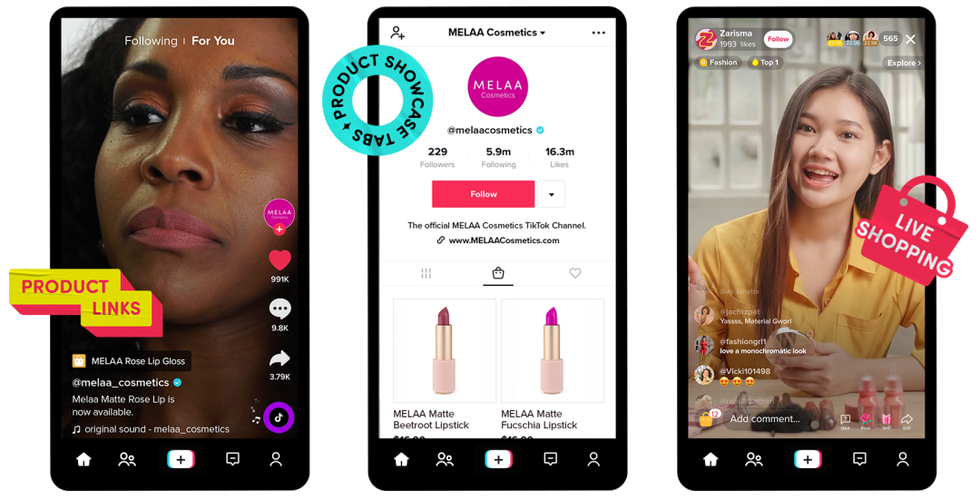
Avoid exaggerated claims like "the best" or "fully cures" without evidence, as they risk complaints and reduce buyer trust. The wrong category can also filter the product into irrelevant search results, so the right potential buyers never see it.
3. Preparing photos, variations, and pricing
Prepare a main photo that shows the product completely and clearly, then add supporting photos from other angles or of the product in use. For products with different sizes or colors, organize variations in groups so buyers aren't confused when choosing. Make sure every variation combination has a clear price and stock.
Pricing is a business decision, not a benchmark number you can copy from another store. Consider material costs, packaging, shipping, and the margin you need. What to avoid is listing a price different from what you tell buyers on other channels, because this kind of mismatch easily triggers questions and complaints.
4. Double-checking before the product goes live
Before pressing save, do one quick round of checks. Read the product name and look at the main photo: do they show the same item without extra explanation? Check the variations: if there are several sizes or colors, make sure every combination has a clear price and stock. Match the description to the photos, especially claims about material or size.
Finally, read the guidance available inside the platform because menu layouts and fields can differ between accounts. If there's a part you're unsure about, note it and verify against official guidance before uploading, not after the product starts getting views. Products may also need updating after going live, so treat this check as a habit, not a one-time formality.
Product Information Checklist so You Don't Edit Back and Forth
Editing a product many times after it goes live isn't just inconvenient. Every change opens the chance for buyers to see inconsistent information, and on a fast-moving platform, the first impression of a product page is easily lost. So this checklist is best used as a working tool before upload, not a formality at the end.
Required information versus supporting information
Practically speaking, product information can be divided into two layers. The first layer is data that must be there for the product to be recognized and selected: product name, category, main photo, variations if any, and price. The second layer is supporting information that makes buyers more confident, such as material, usage instructions, detailed sizes, or package contents.
A common mistake is delaying upload because supporting data isn't complete, even though some of that information can be added after the product goes live. Conversely, uploading with half-baked required data actually triggers repeated revisions in the first few days. So complete the required parts first, then perfect the supporting parts as you go.

How to check product data readiness on your own
Use three simple questions as a final filter. First, do the name, photos, and description show the same item? Second, do all variations already have reasonable prices and stock? Third, are there any claims you can't prove if a buyer asks? If any answer is doubtful, fix it before uploading.
Also note the parts you're intentionally postponing, such as additional photos or a more detailed size chart. This note prevents you from forgetting to update the product after it goes live and helps keep the page consistent over time.
Questions That Often Come Up When Uploading Your Own Product
Many sellers don't fail at the upload click stage, but at the doubt stage: is the product data enough, is the category correct, and what should be done if the upload result isn't as expected. Here are brief answers to the doubts that come up most often.
Does the product have to be perfect before going live?
No. What needs to be complete is the core information that lets buyers understand what they're buying, while supporting details can be added after the product goes live. However, there's a risk limit to maintain: don't upload a product with photos or a description that differ from the actual item just to go live quickly, because corrections after going live actually take time and can disappoint buyers.
What should be done after the product is successfully uploaded?
After the product goes live, check whether the name, category, and variations are consistent when viewed from the buyer's side. If something needs fixing, update the data before planning content strategy. To understand the early flow of a seller account and how to prepare relevant content, direct your attention to the registration guidance and content strategy available inside the platform and in related articles.
What if the menu layout differs from the tutorial I read?
That's normal. Menu layouts and terms can differ between accounts, so readers should verify official guidance inside TikTok Shop as the main source. Use tutorials as an overview of the flow, not as an absolute reference for every input field.
Summary to Use While Working
The key to a tidy way of adding your own product to TikTok Shop isn't how fast you open the form, but how ready your data is before the product is uploaded. Decide on the buyer and category first, prepare raw materials in one folder, complete the required information, then check the consistency of name, photos, variations, and price. After the product goes live, review the page from the buyer's side and update the parts that are still lacking. That way, the product doesn't just make it into the catalog, it's also ready to explain itself to potential buyers.