

Many new business owners assume that once a TikTok account is officially registered as a seller, uploaded products will automatically show up in the store showcase. The reality is not that simple. Personal accounts and seller accounts have different displays and menus, and products uploaded through the personal route will not enter the store catalog. If you are selling on TikTok for the first time, understanding this difference is key to not getting lost when looking for the right menu.
This guide focuses on the mobile flow, because most new store owners manage sales directly from their phones. You will be guided through preparing data, finding the seller menu, filling out the form neatly, and checking whether the product actually appears in the showcase.
First, Understand the Difference Between a Personal Account and a Seller Account
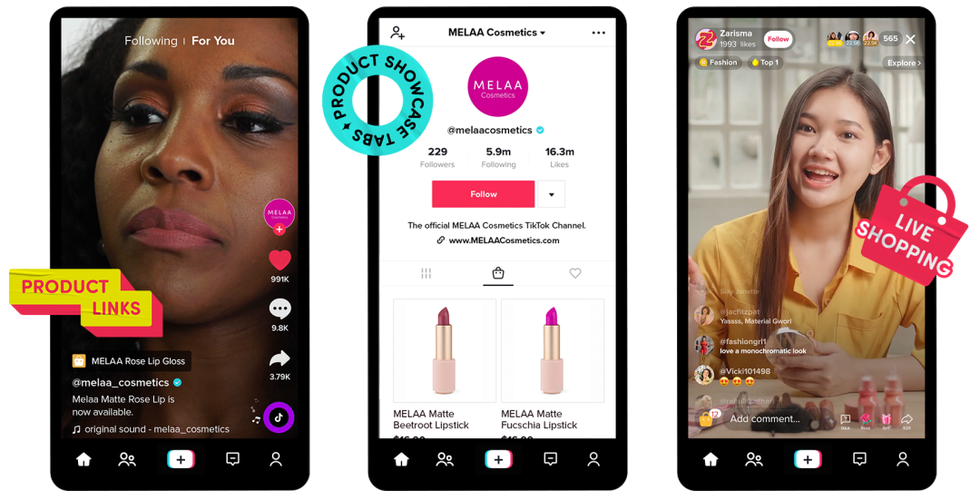
Changing a personal account to a seller account is not just about status. After registering as a seller, you will see additional menus such as catalog or seller center on your profile page. However, menu displays can differ between devices and app versions. The risk of uploading products through the wrong route is that the product is saved as regular content, not as a catalog entry, so it does not appear in the store showcase.
Therefore, make sure you enter through the seller area, not just press the upload button on the home page. If you do not find the same label as in any guide, navigate from the seller center instead of uploading through the regular video upload route.
Data You Must Prepare Before Touching the Upload Menu
Another common mistake is rushing to open the upload menu without complete data. Ideally, prepare the following list before starting to fill out the form:
- A specific product name, not just a general category.
- A brief but informative description: materials, size, and package contents.
- A category that matches the type of item.
- Product photos with a clean background and sufficient lighting.
- Price, stock, and variants if any.
- Package weight and dimensions for shipping calculations.
Half-finished data not only slows down the process but also makes products hard for buyers to find and reduces trust. As a verification note, menu displays and terms may change with app updates, so always double-check before uploading.
Practical Flow for Adding Your First Product via the Mobile App

Adding your first product from your phone feels more complicated than it should for two reasons: the seller menu is not always visible in the same place, and the product form asks for more data than new business owners usually prepare. Here are the points that most often stop the process midway.
Finding the Seller Menu in the App
After the account is registered as a seller, the store management area is usually accessible from the profile page, not from the home tab. Look for an icon or label that leads to the seller center, then select the catalog or add product menu. Note that menu names and layouts can differ between devices and change with app updates, so if you do not find the same label, navigate from the seller center instead of uploading through the regular video upload route. A mistake at this point causes the product to be saved as content, not as a catalog entry.
Filling Out the Product Form Without Half-Finished Data
The safest order is to choose the category first, then fill in the title, photos, description, price, stock, and shipping information. Choosing the category first helps adjust the fields that appear afterward. An example of a specific title: "Stainless Steel Water Bottle 500 ml Leak-Proof Lid" is much easier to find than "Nice Bottle". Avoid uploading screenshots of other products because the quality is low and it risks causing buyer complaints. Descriptions that are too general also make products hard to find, so write the materials, size, and package contents concisely.
Before saving, double-check the package weight and dimensions because this data affects shipping calculations. After saving, the product enters the catalog list and its display status depends on platform review, not a fixed time that can be promised. If the data is incomplete, it is better to save it as a draft than to display a half-finished product.
The Most Common Mistakes and How to Avoid Them
After the first product is uploaded, new store owners usually check the showcase right away and find that their product is not visible. This is where panic often sets in, even though the problem is often simple: there is a difference between a product saved in the catalog and a product actually live in the store.
Product Has Been Uploaded but Does Not Appear in the Showcase
The most common cause is that the product was saved as a draft, not submitted for display. Other causes: the category does not match, the photos or description are incomplete, or you uploaded through the wrong route so the product went into the personal area, not the seller catalog. The correct way to add products to TikTok always ends in the seller catalog menu, not in regular uploads. Check the product list in the seller menu, make sure the status is not draft, then complete the data marked as missing. If everything is correct but the product still is not visible, do not rely on personal assumptions about platform review status. Verification note: menu displays and status terms can differ between devices and app versions, so match them with what you see on your screen.
When Should You Delay Uploading a Product
Delaying an upload is better than displaying a half-finished product. Delay if the photos are still dark or look like screenshots of other products, the description is still just one general sentence, or the stock has not been truly verified. Half-finished products weaken buyer trust and make searching difficult. Instead, prepare a draft in your phone notes: specific title, category, price, stock, weight, and package dimensions. That way, when you open the upload form, you only need to copy the data, not rethink it. The risk limit is clear: a careless upload saves a few minutes but can damage your store's first impression.
Frequently Asked Questions About Uploading Your First Product
Does the product appear in the showcase immediately after saving?
Not always. Saving a product means the data enters the seller catalog, while whether it appears in the store showcase depends on data completeness and platform review. Therefore, the correct way to add products to TikTok always ends with checking the product list, not stopping at the save button.
What is most often wrong when filling out the form?
Mismatched categories and descriptions that are too general. Both make products hard for buyers to find and complicate review. As a risk limit, do not upload screenshots belonging to other sellers, and do not assume review status has a fixed time. Check data completeness first, then submit the product.
When should you delay uploading?
If the photos are still dark, stock is not confirmed, or package weight has not been measured. Half-finished products are better saved as drafts. Once the first product is truly ready to go live, you can continue to the TikTok Shop catalog management guide to tidy up the showcase as a whole.
Small Steps That Determine Your Store's First Impression
There is no instant way to make a store look professional right away. What usually makes the difference is data readiness and carefulness when filling out the form. Take a few minutes to check the title, photos, and description before saving. If you feel unsure, save it as a draft and review it the next day with fresher eyes. That way, your first product is not only successfully uploaded but also worthy of buyer trust.